

Today’s tech tip is a quicky requested by Frances Suzanne – who wanted to know how to choose what text appears automatically when someone pins an image from your site.
It’s pretty easy to do – it’s called adding an alt tag. I’m going to show you how to create photos with alt tags in both blogger and wordpress. Side benefit – this also makes your images easier to search, so when someone does an image search for something you’ve blogged about your image is more likely to come up. I often use image searches when I search to see if someone has done a tutorial I want to read – I feel like I can narrow down which sites I want to click through to easier by looking at images. So this may very well help grow traffic to your site.
Blogger Instructions
In your post, add your picture as usual. Then click on your picture. In the pop-up menu you’ll see several options; click on the one that says “Properties”
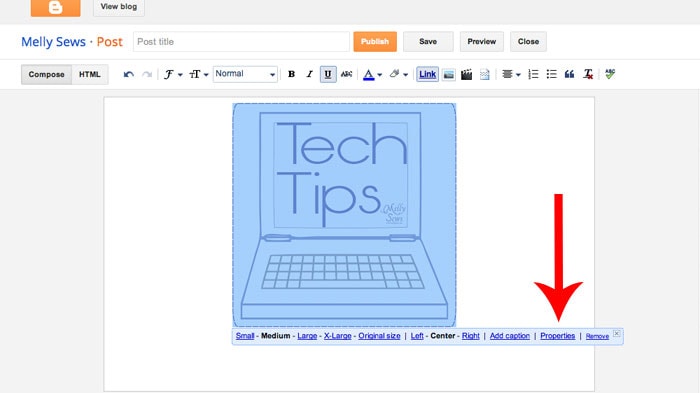
This will open a pop up box. In the “alt text” box, type what you want your photo to say when it is pinned.
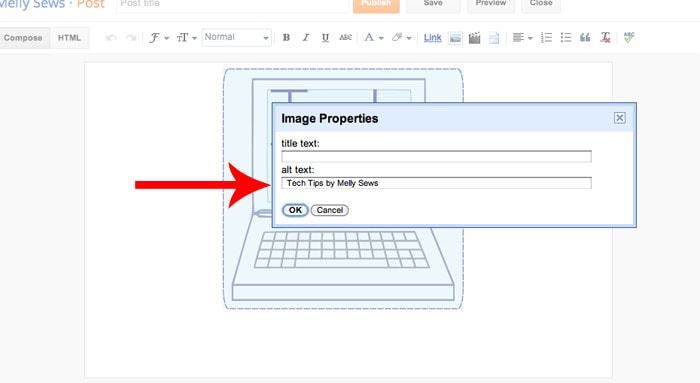
Click OK. That’s it!
WordPress instructions
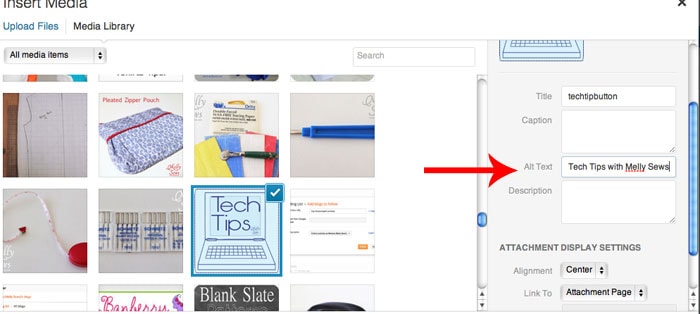
You can do this in one of two ways in WordPress. In your Media library, when you click on any picture you can type the alt text into the menu on the right as show below.
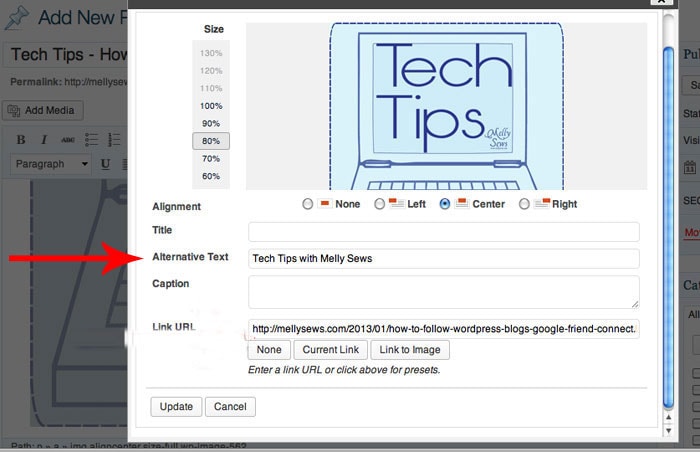
If the picture is already in your post, you can also click on it, then click the image icon that appears in the corner.
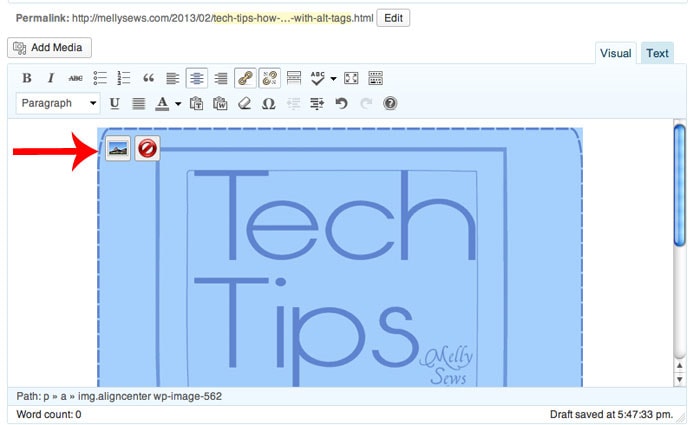
That will open a pop-up box where you can add the alt text.
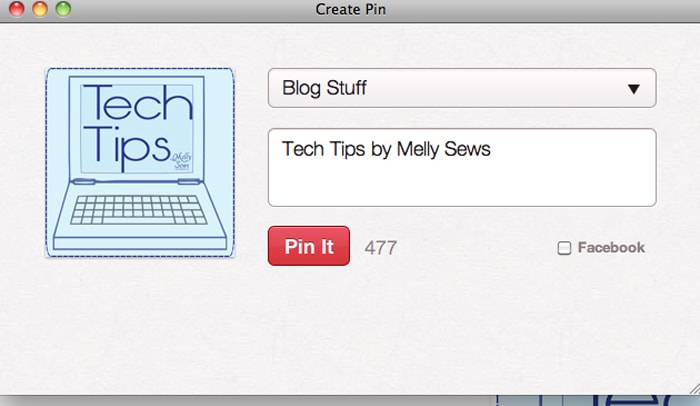
Whether you do this in Blogger or WordPress, this will be the result when someone pins your image:
Hope this helps! Next week I’ll be talking about the Blogger to WordPress switch and then after that we’ll have Sew in Tune, but if there are any other tech tips you’d like to see, ask! If I know how to do it I’ll be happy to make it the subject of one of my future tech tips.
Victoria
Great tip Melly thanks 🙂 am finally posting recent projects – this is a great reminder to blog it right the first time!
Max
Melly thank you SO much. I was getting frustrated trying to work it out. So simple but thank you!
francessuzanne
Thank you so much for posting this! I’m glad to know it helped a few others too :). Looking forward to tomorrow’s blogger to wordpress post! I’ve read a good deal about how to choose a platform, but not how to transition.
justine
While I knew how this worked in Blogger, I was clueless about the alt tags in WP. Thanks Melissa!